summarize in one click
open a meeting note and hit Summarize — screenpipe reads the transcript and the screen captured during the call, then writes decisions, action items, and follow-ups into the note. summarize buttons sit at the top and bottom of the note dock.
one-click summary from the meeting note — decisions, actions, risks
what screenpipe captures
setup checklist
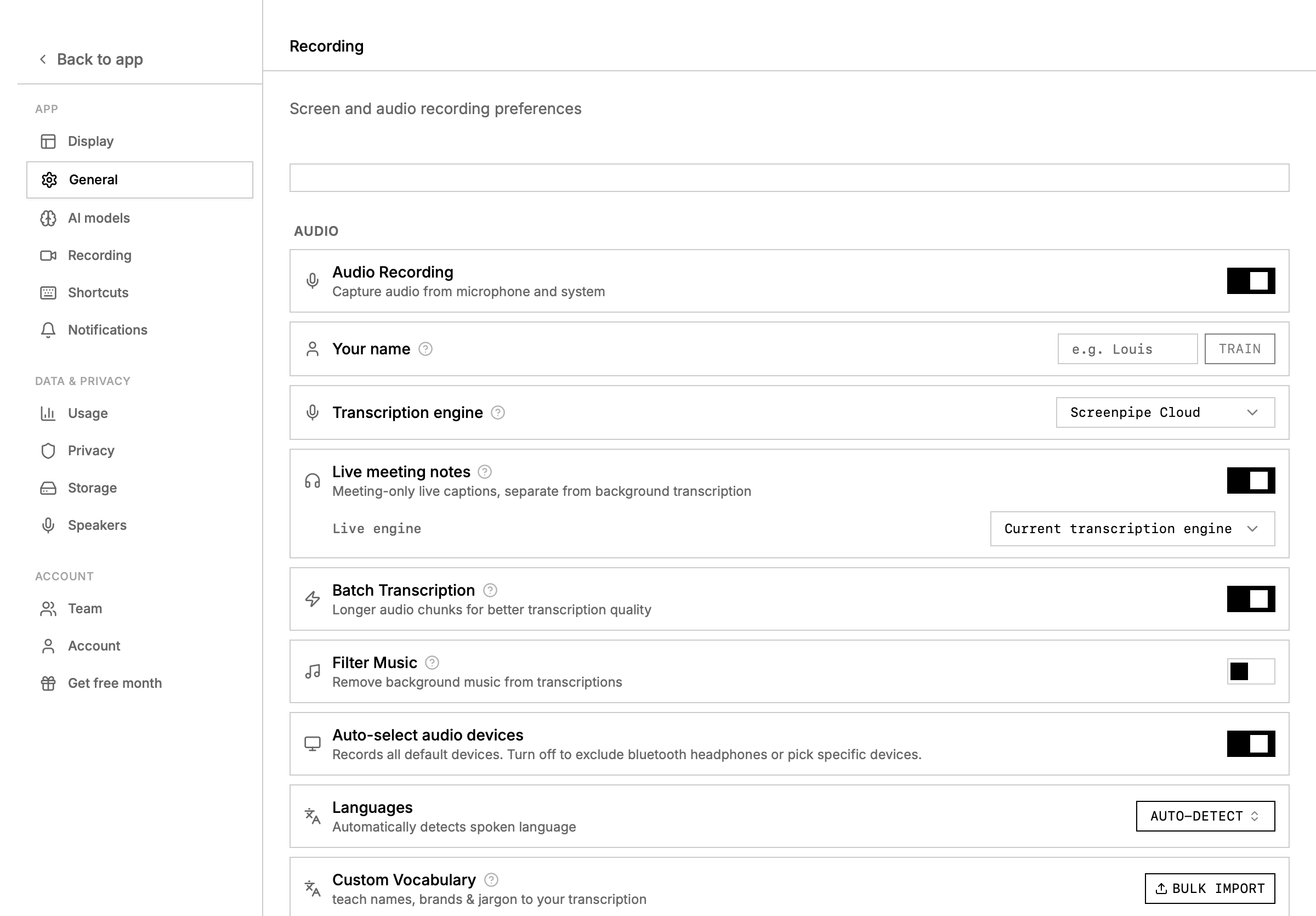
- open settings -> recording and choose the microphone and system audio sources you want.
- connect Google Calendar in settings -> connections if you want attendee-aware speaker naming.
- open the meeting app normally: Zoom, Google Meet, Microsoft Teams, Slack huddles, or another call surface.
- let screenpipe record and transcribe in the background.
- open the meeting from the timeline or search with
content_type=audio.
live transcript workflow
Use the meeting transcript sidebar to:- rename a speaker once and propagate the label through the meeting
- search for similar speakers before merging duplicates
- copy the full transcript as plain text
- open the related timeline moment when you need visual context
- summarize the meeting with your default AI or a selected pipe
summarize with a pipe
meeting summaries can use any installed or store pipe. use a pipe when you want a repeatable output format, CRM writeback, an Obsidian note, or a sales-call summary that always includes the same fields. good summary-pipe instructions include:speaker cleanup
meeting APIs
list and search meetings
q parameter searches across meeting title, attendees, and notes with case-insensitive substring matching.